How to Limit Galaxy AI to On-Device Processing—or Cut It Off Completely
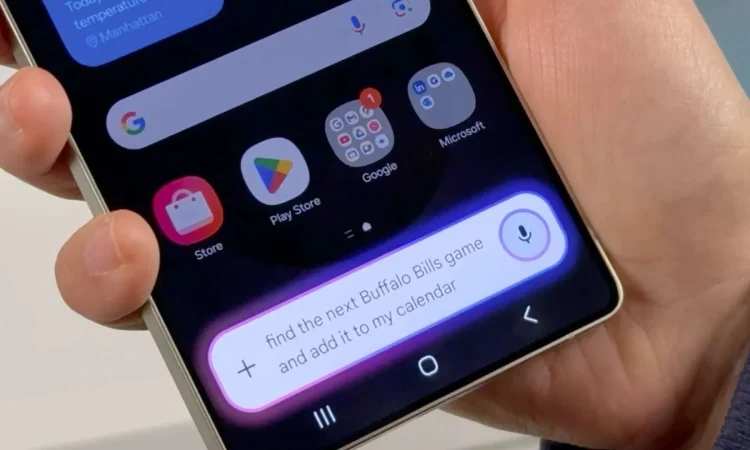
In 2024, Samsung launched Galaxy AI, a suite of intelligent capabilities supported by artificial intelligence on the latest Galaxy smartphones.
Galaxy AI – Designed to make wherever you are feel more natural.
From aiding in real-time calls with instant translation and AI photo/video editing to summarizing notes, Galaxy AI is built to understand the world around you in a faster and more intuitive way.
But much of the magic is powered by cloud processing, meaning your data is sent to Samsung’s servers and back to enable these enhancements.
While convenient, this raises concerns for users who care about privacy, data control, and battery efficiency. If you’re one of them and want to keep data on your device—or avoid AI features altogether—Samsung gives you control.
In This Guide:
- What Galaxy AI actually does
- Local vs remote processing: on-device vs in the cloud
- How to restrict Galaxy AI to on-device only
- How to completely disable Galaxy AI
- Factors to consider before switching it off
What Is Galaxy AI?
Galaxy AI comprises a suite of artificial intelligence tools integrated into Samsung Galaxy devices. These features enhance built-in apps and services. Key tools include:
- Live Translate: Instant bilingual voice and text translation during phone calls
- Note Assist: Summarizes handwritten or typed notes for better structure
- Photo Assist: Enhances, edits, or removes objects from photos using generative AI
- Chat Assist: Suggests alternative phrasing or translates chats
- Transcript Assist: Transcribes voice messages automatically
Some of these tools run using the hardware on your phone (on-device processing), while others depend on cloud servers for more advanced functionality.
On-Device vs Cloud-Based Processing
- On-device AI uses the built-in processing power (e.g., Neural Processing Unit/NPU) to handle tasks.
- Works offline
- Typically faster
- Keeps data local—never sent to the cloud
- Cloud AI sends your data (voice, text, photos, etc.) to Samsung’s servers for processing.
- Enables advanced features like live translation and photo manipulation
- Data is encrypted and protected under Samsung’s privacy policy
- Comes with privacy trade-offs
Good news: Samsung offers users a choice.
How to Force Galaxy AI to Process On-Device Only
If you’d like to use Galaxy AI but want to restrict it to local processing only, follow these steps:
1. Open Settings
Launch the Settings app on your Galaxy device.
2. Navigate to Advanced Intelligence
Scroll down and tap Advanced Intelligence, where all Galaxy AI options are managed.
3. Select “Processing Mode” or “AI Processing Settings”
You’ll see options to choose between:
- “On-Device”
- “Cloud + On-Device”
Select On-Device Only.
4. Confirm the Change
You may be notified that certain features will be restricted or disabled. Confirm your selection.
5. Adjust Individual App Settings (Optional)
Some apps like Samsung Notes, Samsung Keyboard, or Gallery have their own AI-related settings:
- Review them individually
- Disable cloud-based features as needed
⚠️ Once cloud processing is turned off, features like grammar suggestions or transcription may remain—but live translations or AI photo edits might be less effective or unavailable.
How to Disable Galaxy AI Completely
If you’d prefer to avoid Galaxy AI altogether—on or off the device—here’s how to opt out fully:
1. Open Settings
Start by launching the Settings app.
2. Tap on Advanced Intelligence
Access the section that contains all AI-related tools and settings.
3. Toggle Off Individual Features
There’s no master switch (yet), but you can manually disable each feature:
- Live Translate: Disable in Phone → Call Settings
- Note Assist: Go to Samsung Notes → Settings → Disable AI options
- Photo Assist: Open Gallery → Edit icon → Disable AI suggestions
- Chat Assist: Go to Samsung Keyboard → Suggestion Settings
- Transcript Assist: Settings located in the Voice Recorder app
4. Turn Off Cloud Processing
In the Advanced Intelligence section, toggle off “Cloud Processing.”
This ensures no data is sent to servers for analysis.
5. Revoke Cloud AI Permissions (Optional)
For additional control:
- Go to Settings → Privacy → Permission Manager
- Review app access to online syncing or cloud AI
- Revoke permissions as needed
✅ This method is the most thorough way to completely disable Galaxy AI from your phone.
Why Some Users May Limit or Turn Off Galaxy AI
Samsung has invested heavily in Galaxy AI, and many users appreciate its utility. However, some have legitimate concerns, including:
- Data Privacy: Cloud transmission introduces risk, even with encryption
- Data Usage: AI processing can consume extra mobile data
- Battery Life: Cloud operations can drain your battery faster
- Personal Preference: Some users simply prefer an AI-free, traditional experience
What to Consider Before Turning Off Galaxy AI
Before completely turning Galaxy AI off, consider:
- Do I rely on AI for daily tasks?
For example, Live Translate or Note Assist may enhance your workflow. - Is on-device processing enough?
Some features will still work offline, but not all. - Would a hybrid approach be better?
Keep only your most-used features active. Disable the rest and limit cloud use to maintain privacy.
🔁 Samsung may modify how Galaxy AI works with future software updates. It’s wise to revisit your settings after each major update (One UI or Android version).
Final Thoughts
Galaxy AI delivers a futuristic experience for users seeking productivity, communication, and creativity through AI. At the same time, Samsung respects your right to control your device.
Whether you want:
- On-device processing only for privacy, or
- No Galaxy AI at all for a traditional smartphone experience—
The choice is yours.
A few adjustments in the settings menu are all it takes to tailor your Galaxy experience to your needs.